

CQAR Guide
Recruiter How-To
Step-by-step playbooks for the four tasks recruiters run most often: build a role, invite candidates, review a report, and shortlist.
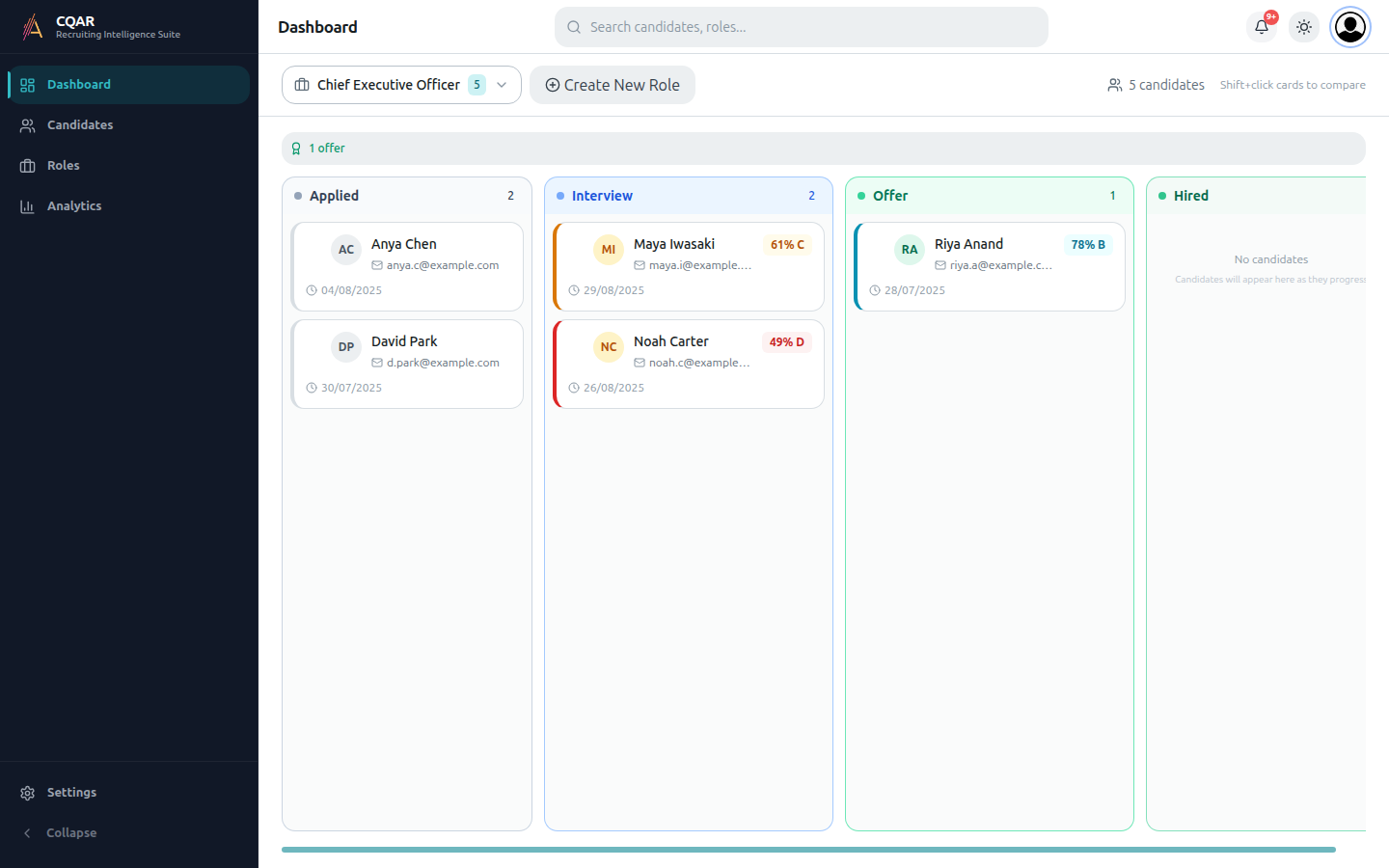
Open the recruiter dashboard
Sign in at /signin with your work credentials. You land on the pipeline for your most recently used role.
- Use the role dropdown (top-left of the board) to switch roles.
- The candidate count and "1 offer / 0 hired" summary update with the selected role.
- Use the search box in the header to jump to a specific candidate or role.
Playbook 1 — Build a role with AI
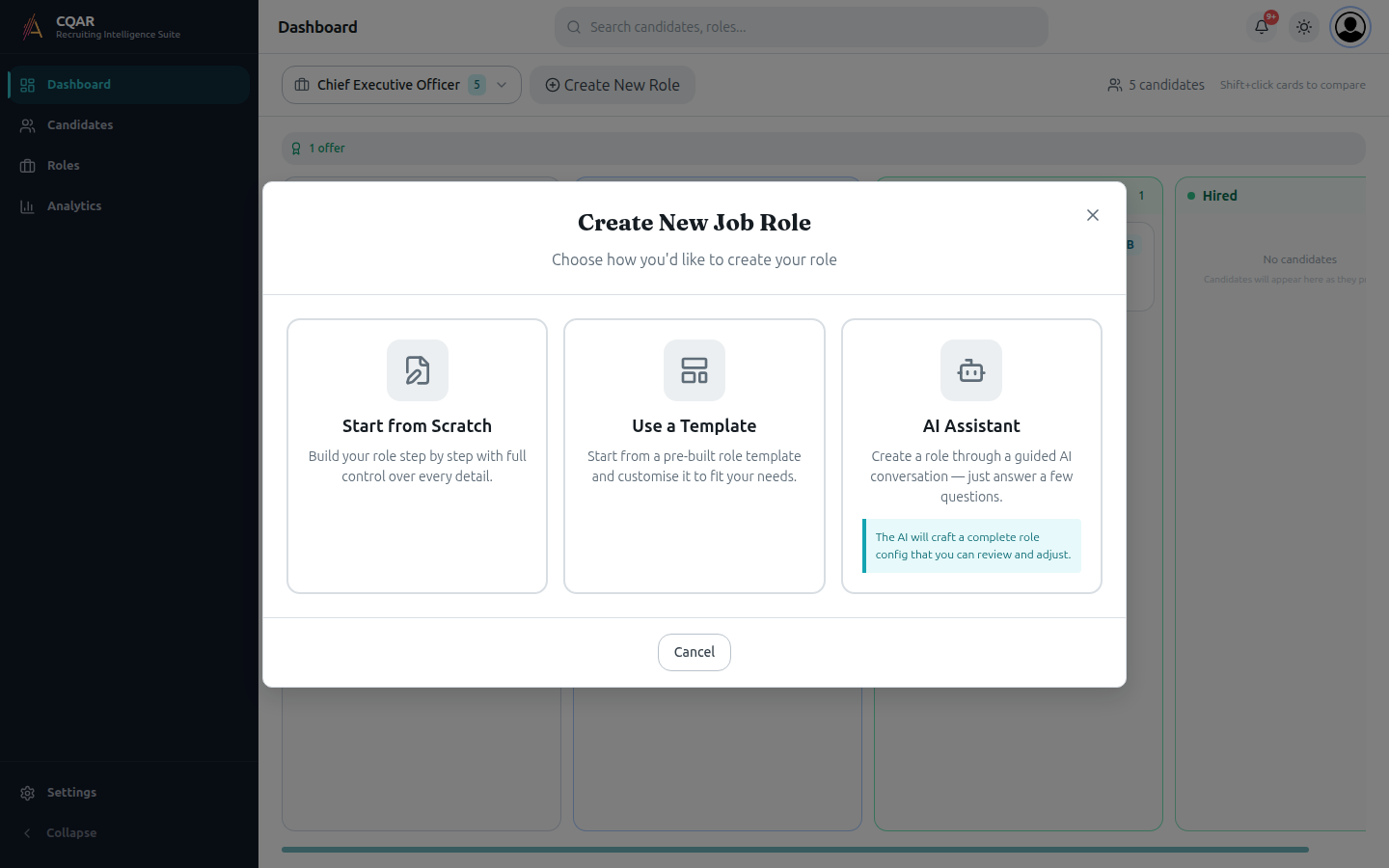
The fastest path from blank to ready: click Create New Role, pick AI Assistant.
- Click Create New Role at the top of the pipeline.
- Choose AI Assistant.
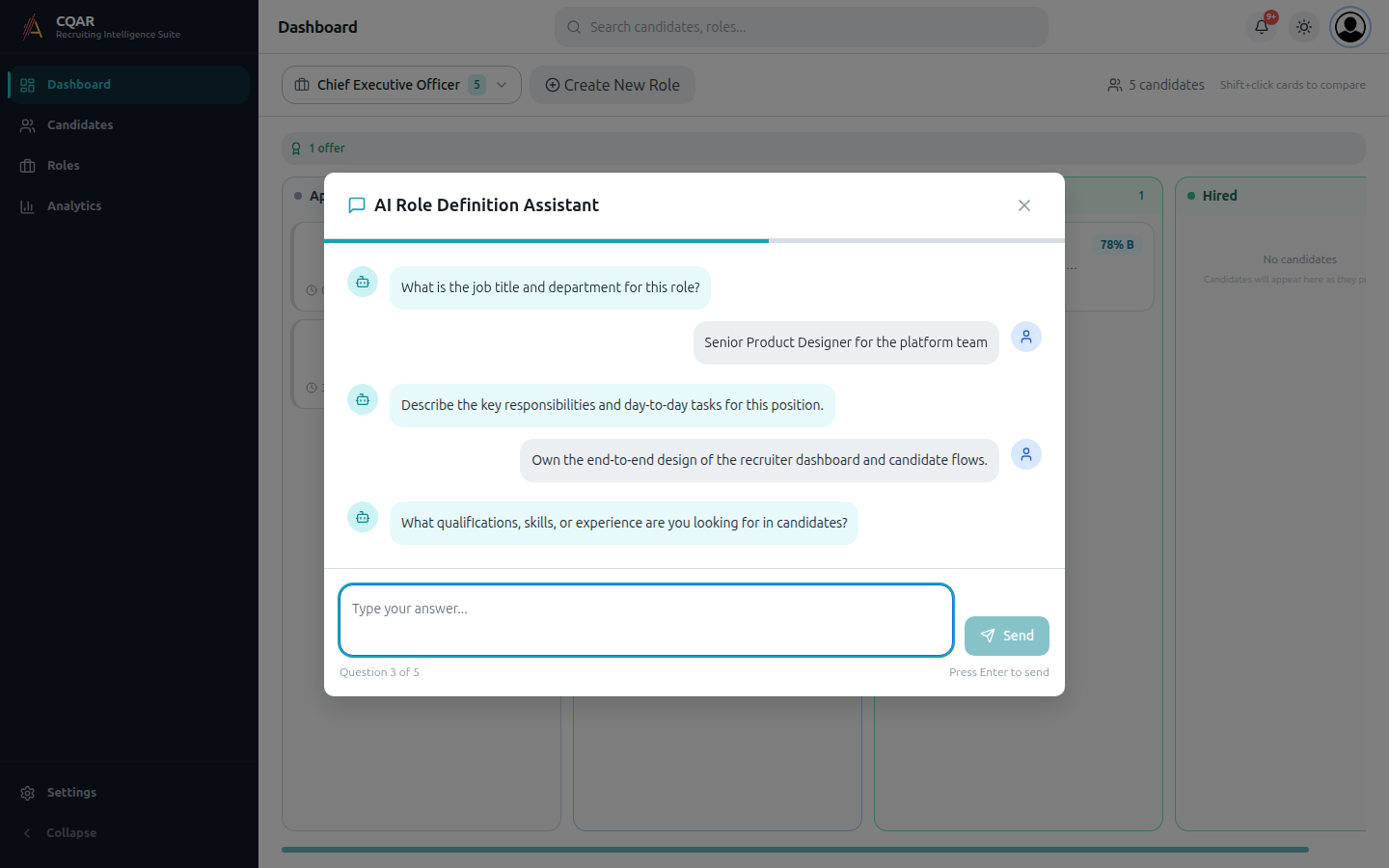
- Answer five short questions in plain English.
- Review the generated role in the wizard, adjust anything, and Save.
- The role is created and appears in your role dropdown.
What the AI Assistant asks
Five questions — clear answers produce the best draft.
- Job title and department. Be specific — "Senior Backend Engineer, Platform team".
- Key responsibilities. Bullet what the person will own day-to-day.
- Qualifications you need. Stack, years, certifications, must-haves.
- Team culture and work style. Collaborative? Autonomous? Fast-paced?
- Traits that matter for success. Communication, ownership, attention to detail.
Playbook 2 — Invite candidates
Every saved role has a shareable apply link. Send it directly or post it on a job board.
- After Save, the dialog shows the apply link with a Copy button.
- Candidates land on a branded apply page, upload a resume, and accept the informed-participation disclosure.
- Their card appears in Applied and moves automatically as they complete screening or interview.
- To re-share later: open the role's edit panel, the link is at the top.
Playbook 3 — Review a candidate report
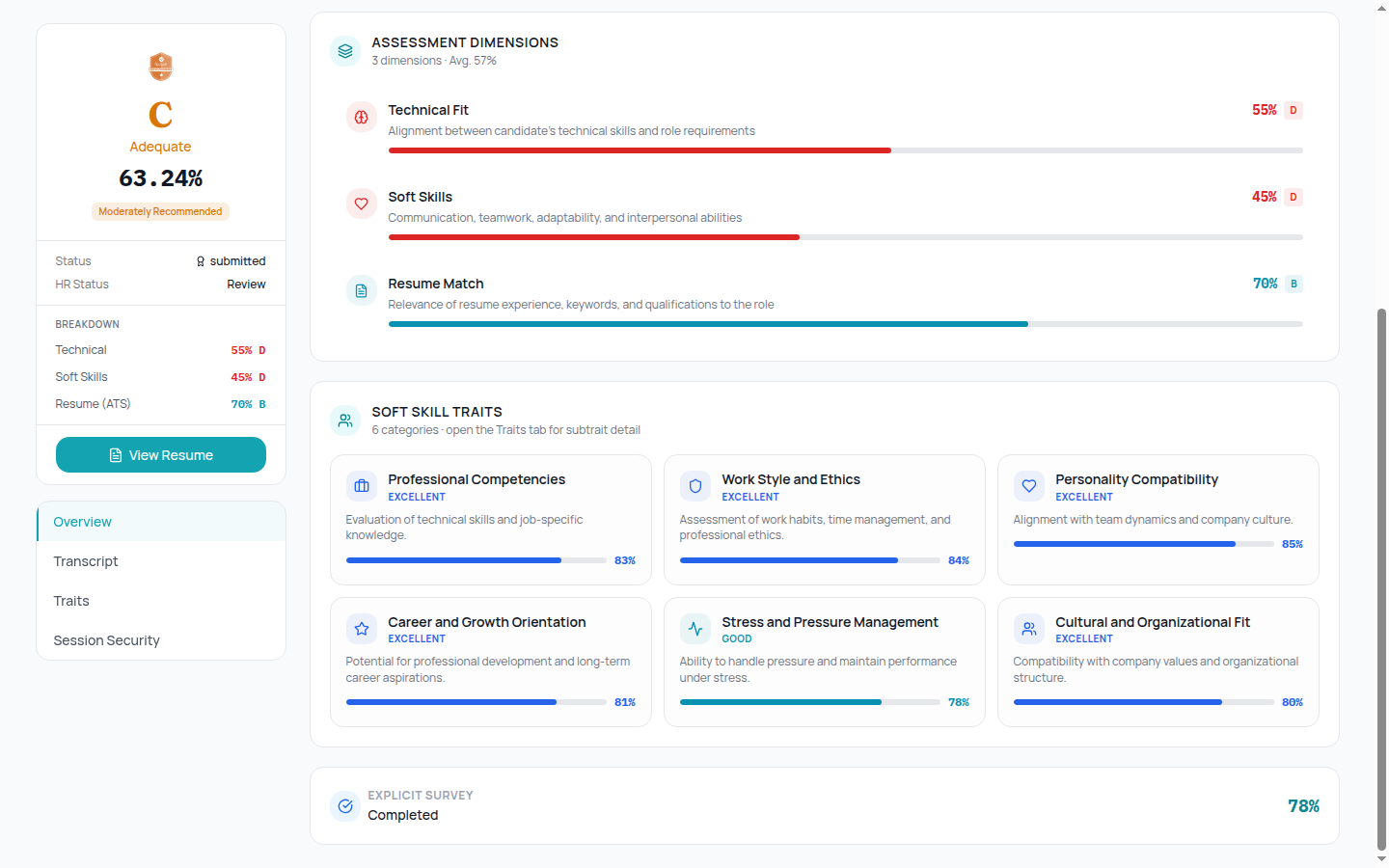
Click a card on the pipeline to open the report. Grade and key sub-scores sit at the top.
- Grade card — composite A+/A/B/C/D/X with fit percentage.
- Assessment Dimensions — Technical Fit, Soft Skills, Resume Match.
- Soft Skill Traits — six categories from Professional Competencies through Cultural Fit.
- Use the tabs (Overview, Transcript, Traits, Session Security) to drill in further.
Playbook 4 — Shortlist with compare
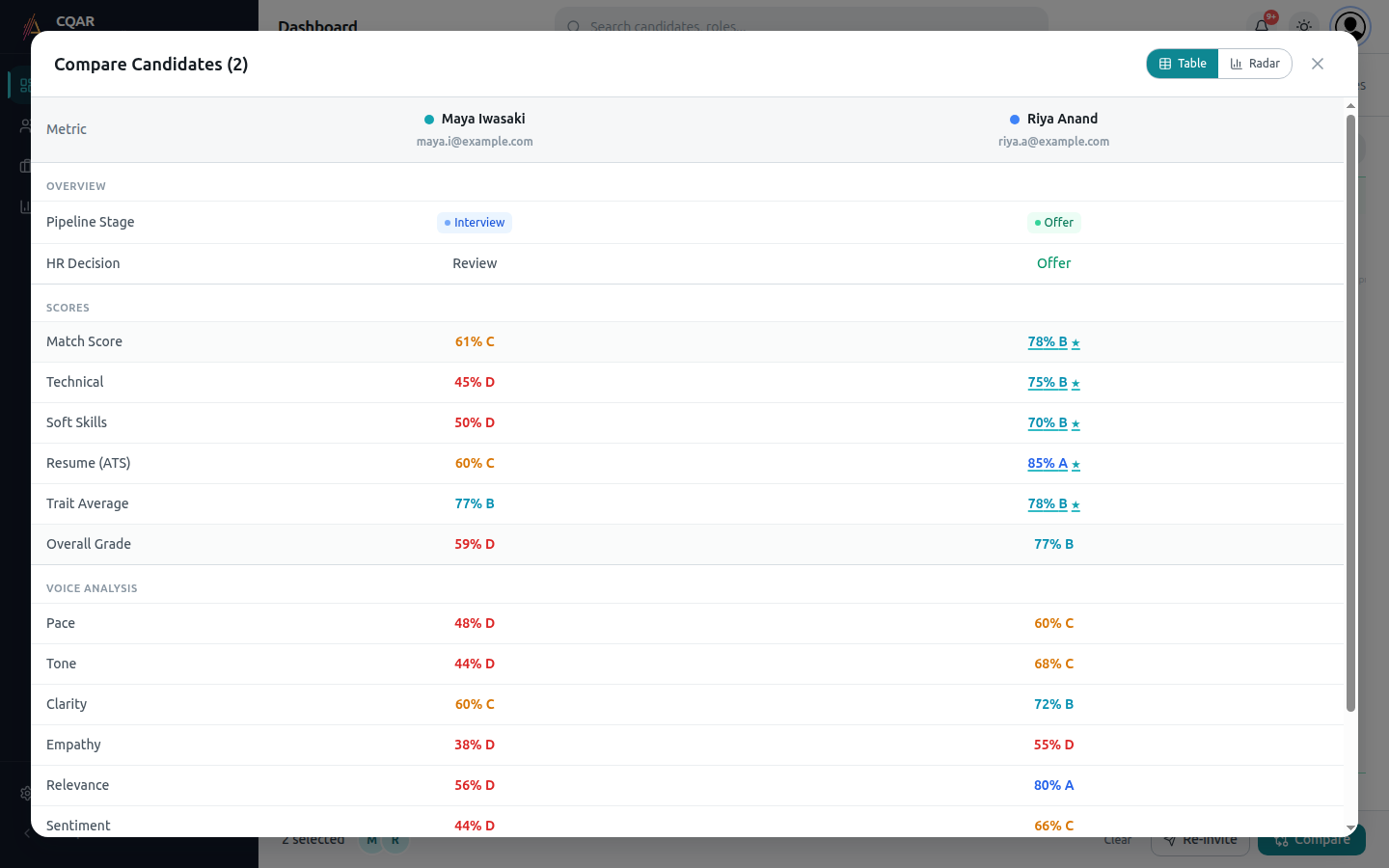
Pick two or more candidates, hit Compare, and decide with overlapping scores instead of memory.
- Shift-click candidate cards to add them to the selection (the strip at the bottom shows who's in).
- Click Compare.
- Use the Table view to scan row-by-row — best scores are highlighted with a star.
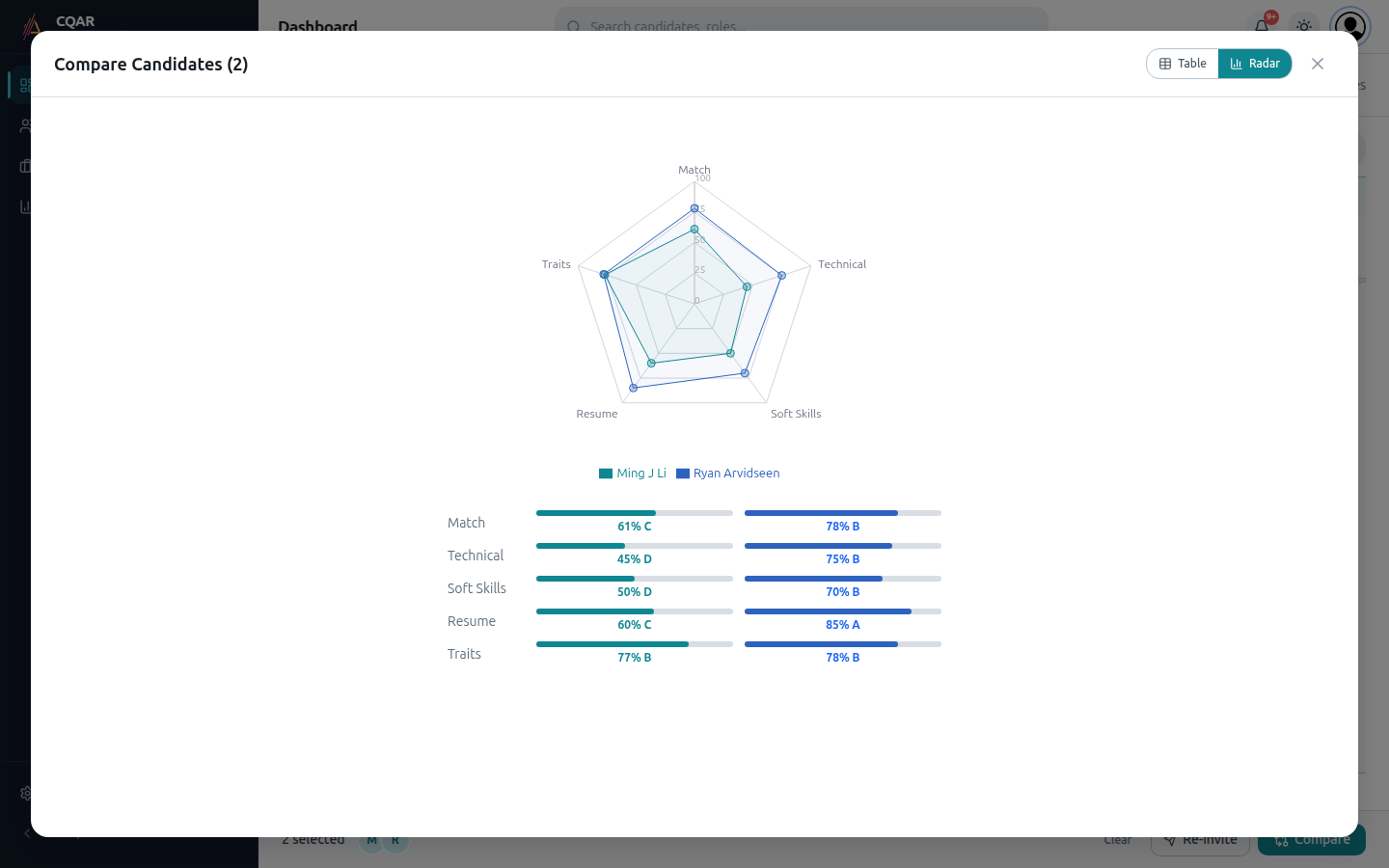
- Switch to Radar for an overlay chart across Match, Technical, Soft, Resume, and Trait Average.
Radar view for a quick overlay read
Useful when one candidate is stronger across the board and another only on a single axis.
- Each axis runs 0–100. The further out, the stronger.
- The score-bar table below the chart restates each axis numerically with letter grades.
- Click Full Report on a candidate in the table view to open their detailed report in a new tab.
Move candidates through the pipeline
Drag cards between columns to advance, reject, or stall. Each move is logged and visible to the team.
- System columns (Screening, Interview) update automatically as candidates complete each stage.
- HR columns (Assessment, Offer, Hired, Rejected, Stalled) move by drag.
- Every stage transition is recorded in the audit trail for compliance.
- Use bulk Re-invite from the selection strip to nudge candidates who haven't started yet.
That's the day-to-day
If you need the product narrative for a client demo, the How CQAR Works guide is built for that.
See How CQAR Works for the product story, or Onboarding to walk a new teammate through first setup. Questions? See the in-app FAQ or the top-level FAQ.md.